Manager Functions
Reports
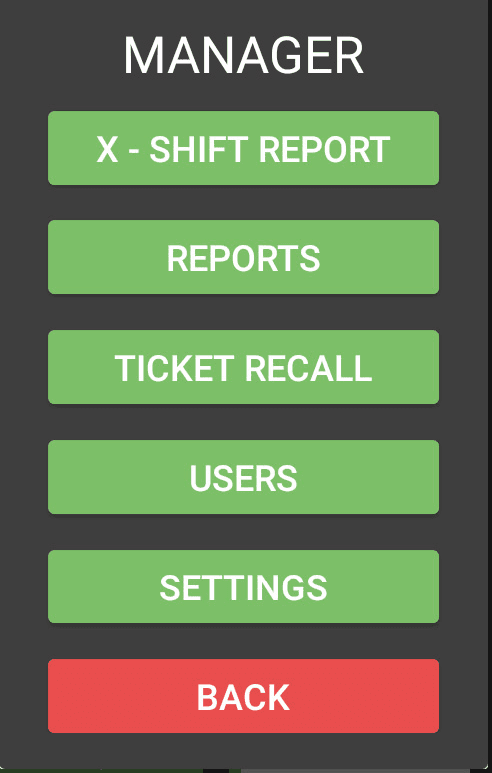
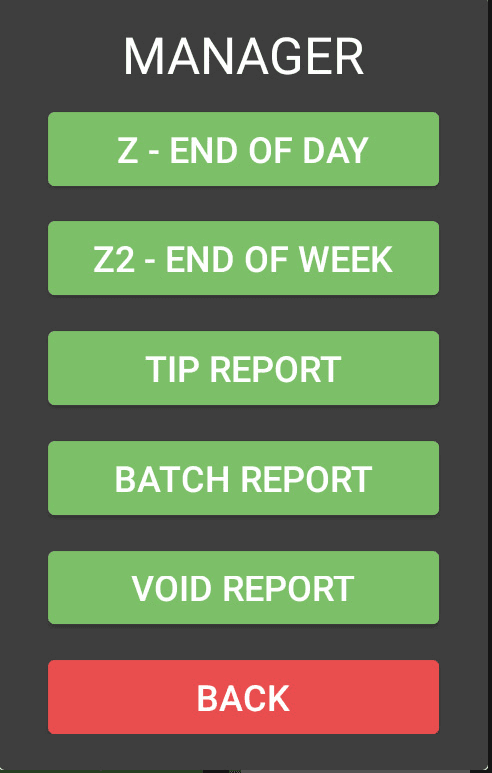
Reporting is divided into two sections in the application. The X-Shift report is accessible right from the manager screen as it doesn't reset any totals for the day and is useful for printing mid-shift. The rest of the reports are located under Manager > Reports.
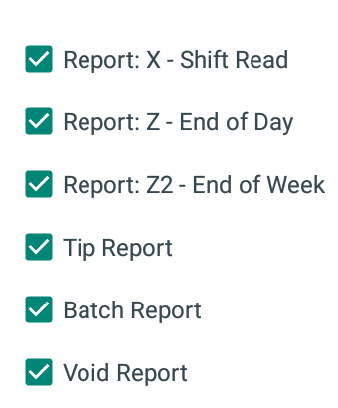
- X-Shift Report - A summary report of the day's till activities so far. It can be run at any time during the sales day without resetting the day's information in the POS.
- Z-End of Day - An end-of-day report, run at the close of each sales day. It shows totals and a summary of relevant till actions as in the X-Shift report, except it resets all the day's activities so a new sales day can start with fresh numbers.
- Z2-End of Week - This report is the same as the Z-End of Day report, except it contains totals for the week and clears out the week's sales activities.
- Batch Report - This report details all transactions that have processed through the system that haven't been cleared yet by the Z reports.
- Void Report - This report lists and totals all voids that have occurred in the system that haven't yet been cleared by the Z reports.
Users
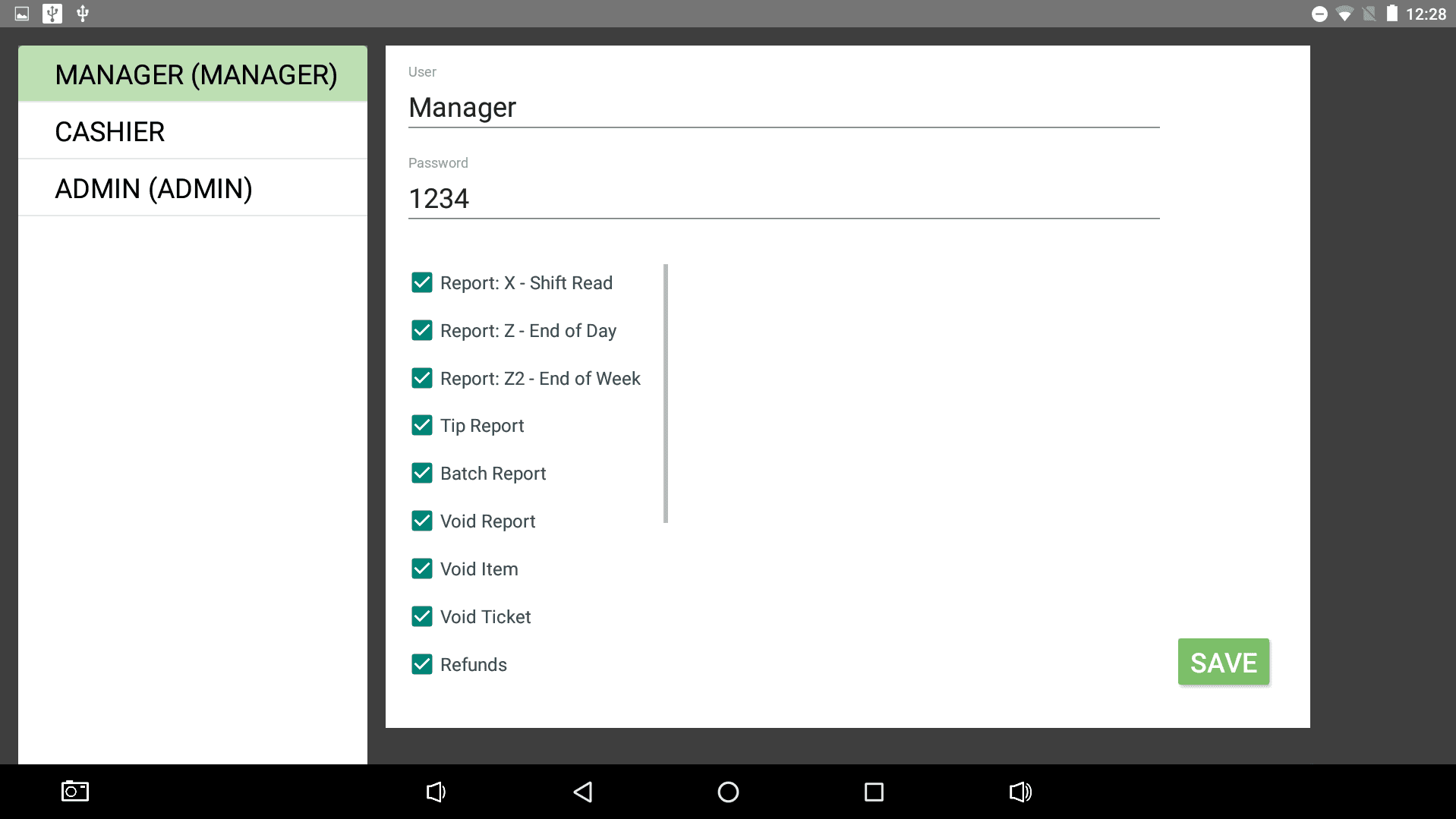
This section allows the user to edit manager codes and permissions for different types of employees. There are three by default:
- Admin - This user code can bypass all manager password prompts and is generally used by upper management.
- Manager - This is the code that will bypass most manager password prompts.
- Cashier - Every permission allowed on this role is what controls what a basic user is allowed to do.
The names, permissions, and codes of these can be changed. However, new ones cannot be added and existing ones cannot be deleted. Users can be accessed under Manager > Users.
Report Permissions
These permission options enable / disable the user's ability to run these specific reports. These reports are detailed further in the Reports section of the Manager Functions section.
Application Permissions
- Void Item - Allows the user to swipe items from the current ticket to delete them.
- Void Ticket - Allows the user to void a ticket.
- Refunds - Allows the user to create a refund.
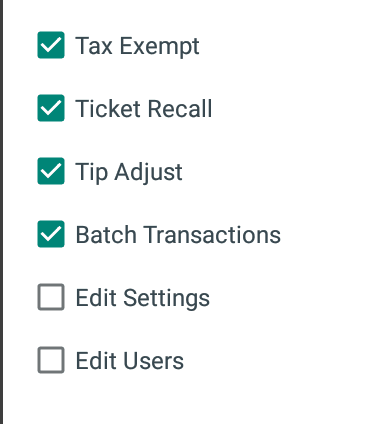
- Tax Exempt - Allows the user to add tax exemptions to items.
- Ticket Recall - Allows the user to run ticket recall.
- Tip Adjust - Allows the user to adjust tips on tickets.
- Batch Transactions - Allows the user to batch transactions in ticket recall.
- Edit Settings - Allows the user to access and edit various settings in the settings sections.
- Edit User - Allows the user to edit user permissions.
Ticket Recall
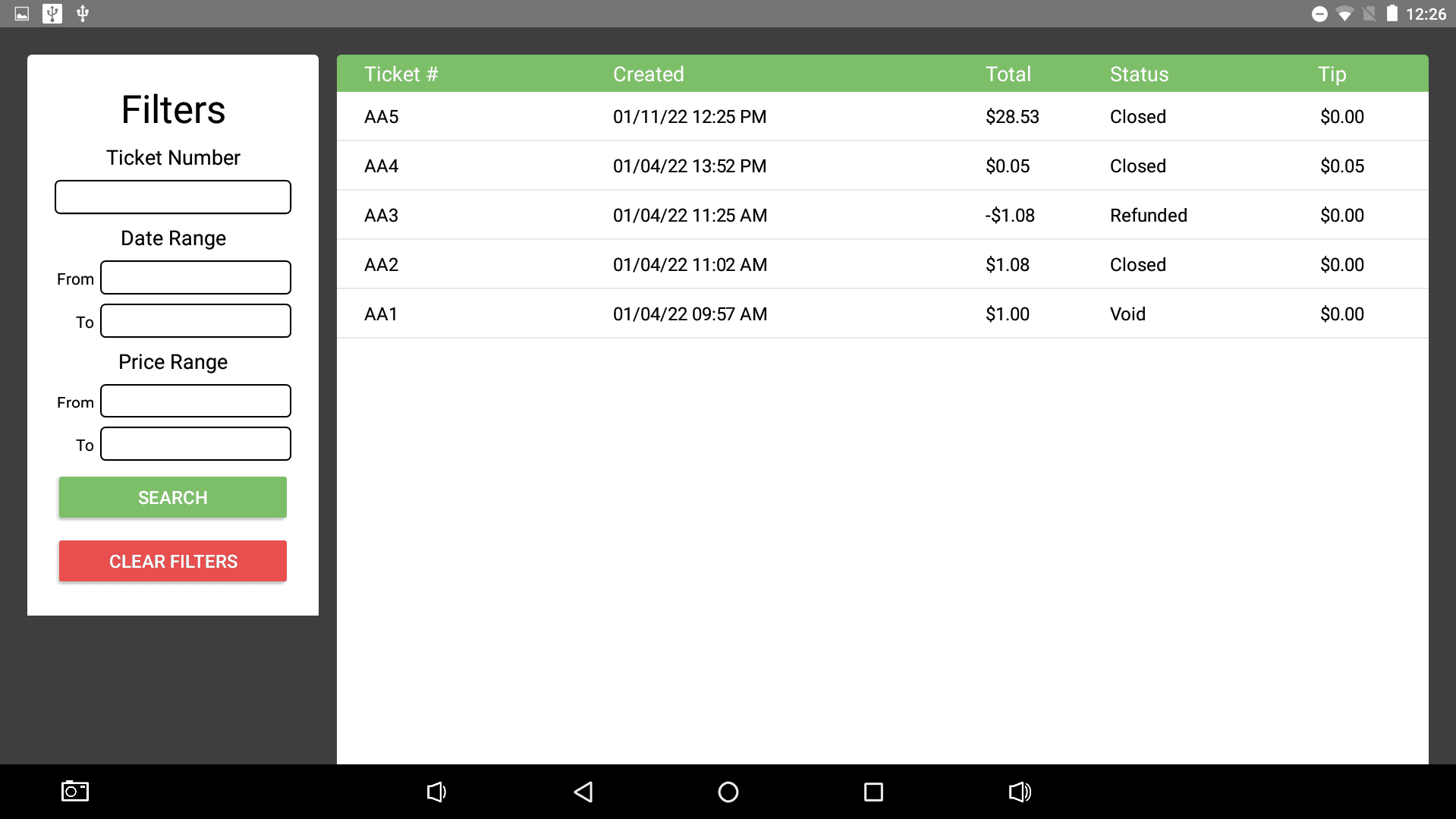
Ticket recall gives users access to tickets that have been created on the point of sale since the last Z2 report was ran and data cleared.
- Ticket # - Denotes the number assigned to the ticket. The first two letters will correspond to the Device Name from General Settings and the number is the ticket number.
- Created - The date and time the ticket was created.
- Total - The ticket total at the time it was paid. If the total is negative, that means it was a refunded amount.
- Status - Denotes the status of the ticket if it was Closed, Refunded, or Void. Closed means the ticket was paid.
- Tip - With tip enabled in General Settings, this will display any tips that have been added to a ticket. Tips can be added from the Batch/Tip Adjust page.
Settings
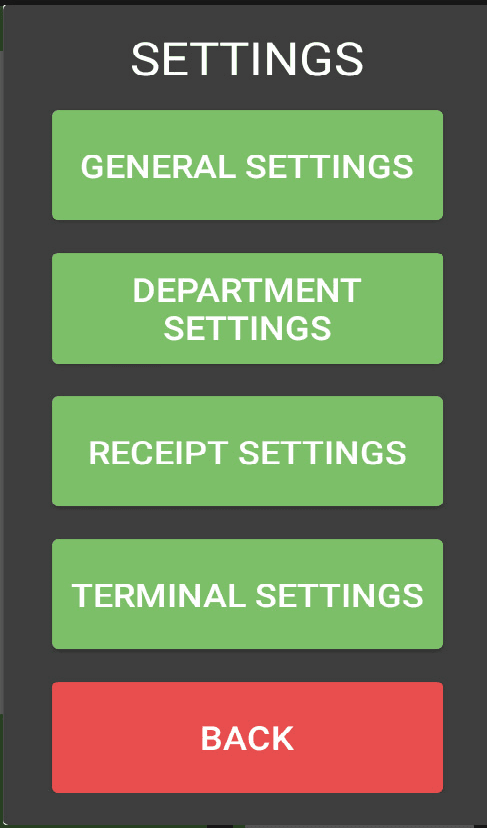
This section allows the user to edit different settings within the application that contains General Settings, Department Settings, Receipt Settings, and Terminal Settings.
General Settings
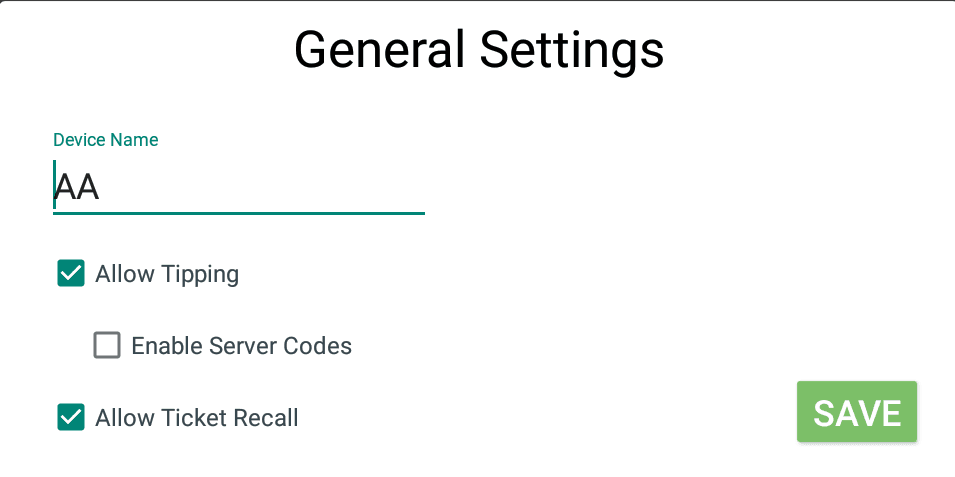
This section allows the user to enable / disable specific features of the point of sale as well as edit the device name.
- Device Name - This name can only be two letter or numbers long and denotes the station that a ticket has originated from. This is useful to change only when there are multiple stations in one store.
- Allow Tipping - Enables tipping and the Batch/Tip Adjust button.
- Enable Server Codes - Can only be enabled if tipping is allowed. This allows tips on tickets to be assigned to numbers. Each employee can choose their own unique number to track their tips under.
- Allow Ticket Recall - Enables ticket recall, which allows users to access previous tickets created in the system.
Department Settings
This is where existing departments can be edited and new ones made. When created, these will appear in a scrollable list on the home screen.
Editing / Creating a Department
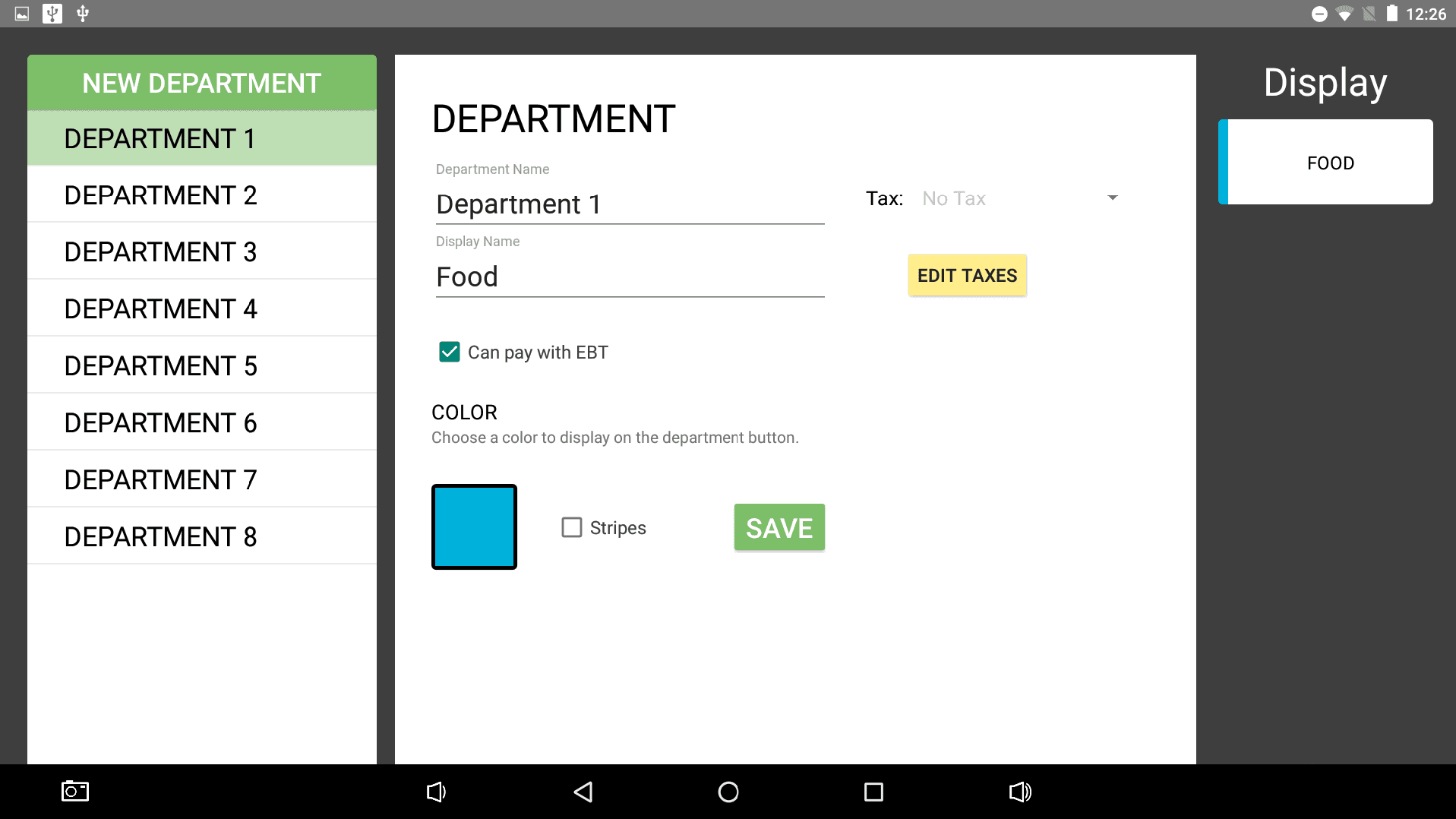
To create a new department, select New Department. This will create a new department at the bottom of the list of current departments. To edit an existing department, select it. To delete a department, swipe it to the right or left and select Confirm on the pop up to delete it.
Editing / Adding Tax to Department
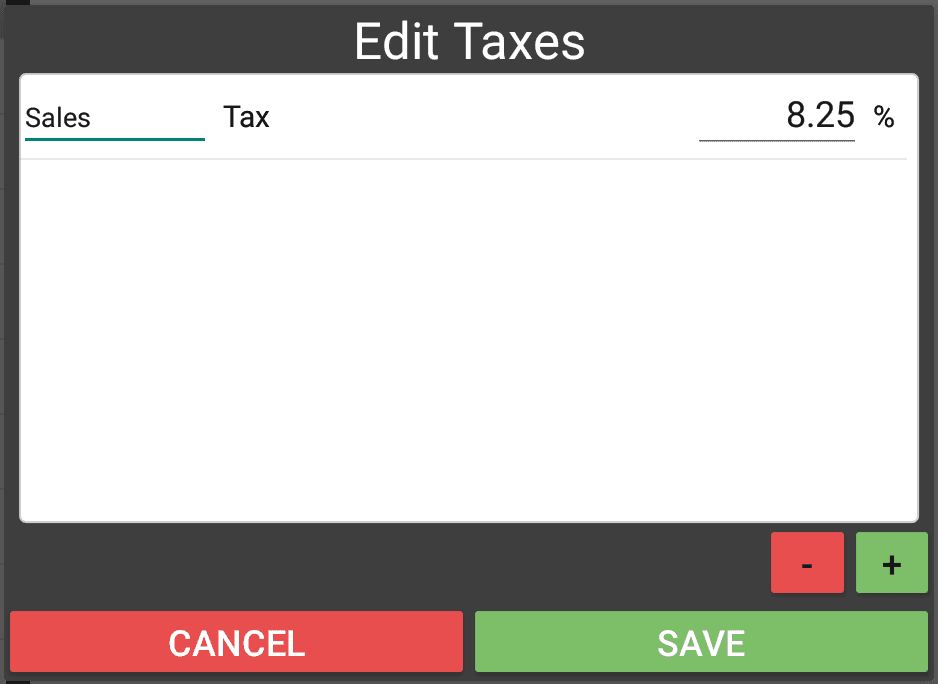
Select the Edit Taxes button in a department. This will open the list of current tax rates that exist in the system, if any. To create a new one, select the plus (+) button at the bottom right. Name the rate and add a percentage rate. Make sure the decimal is in the correct place. Select Save when finished. To add the rate to a department, select the tax dropdown on the appropriate department and select the tax rate.
Department Options
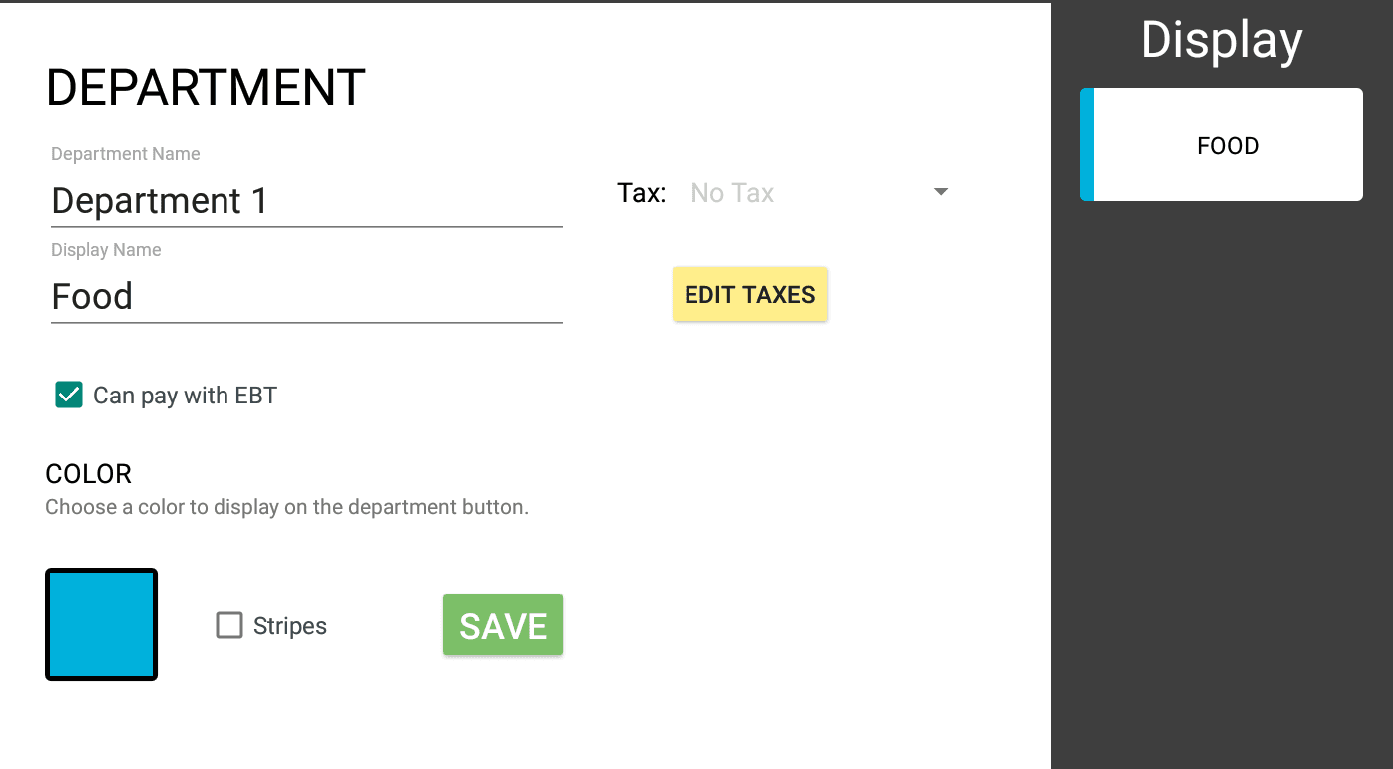
- Department Name - Full name of the department. This does not display on the button and is for reporting purposes.
- Display Name - This is the name that will display on the button on the main screen.
- Tax - The rate added here will apply to anything rang up to this department.
- Can Pay With EBT - Determines if items rang up to this department are allowed to be purchased with EBT.
- Color - Colors can be chosen to color code each department. The stripes checkbox adds white striping to the color bar.
- Display - Displays how the department button will appear on the main screen based on the changes made in these settings.
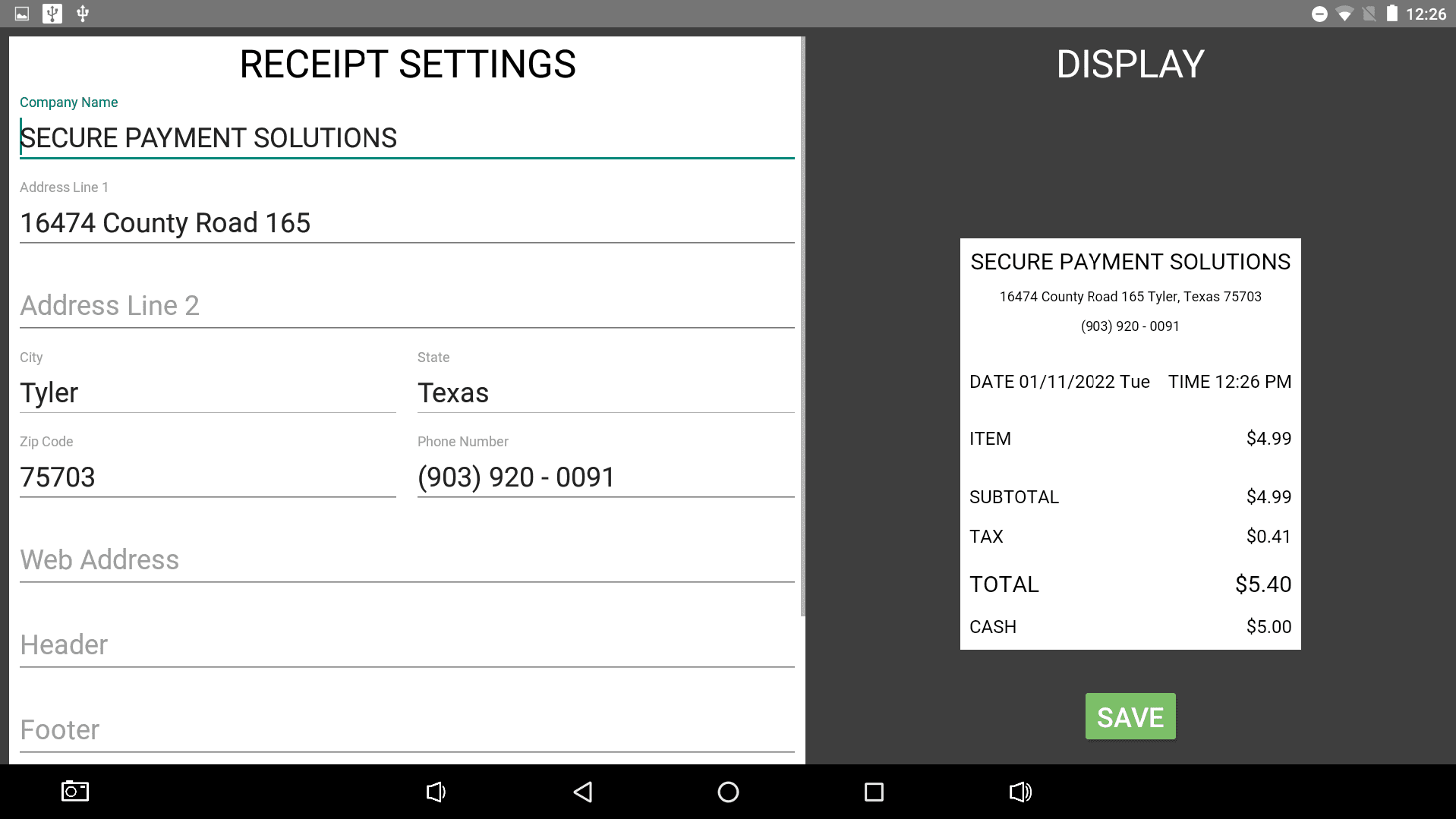
Receipt Settings
Editing the settings here changes what displays on printed receipts. Information such as the company name, address, phone number, and web address can be added here as well as a company logo. The company logo will need to be added to the device, which can easily be done with a USB drive inserted into the back of the device.
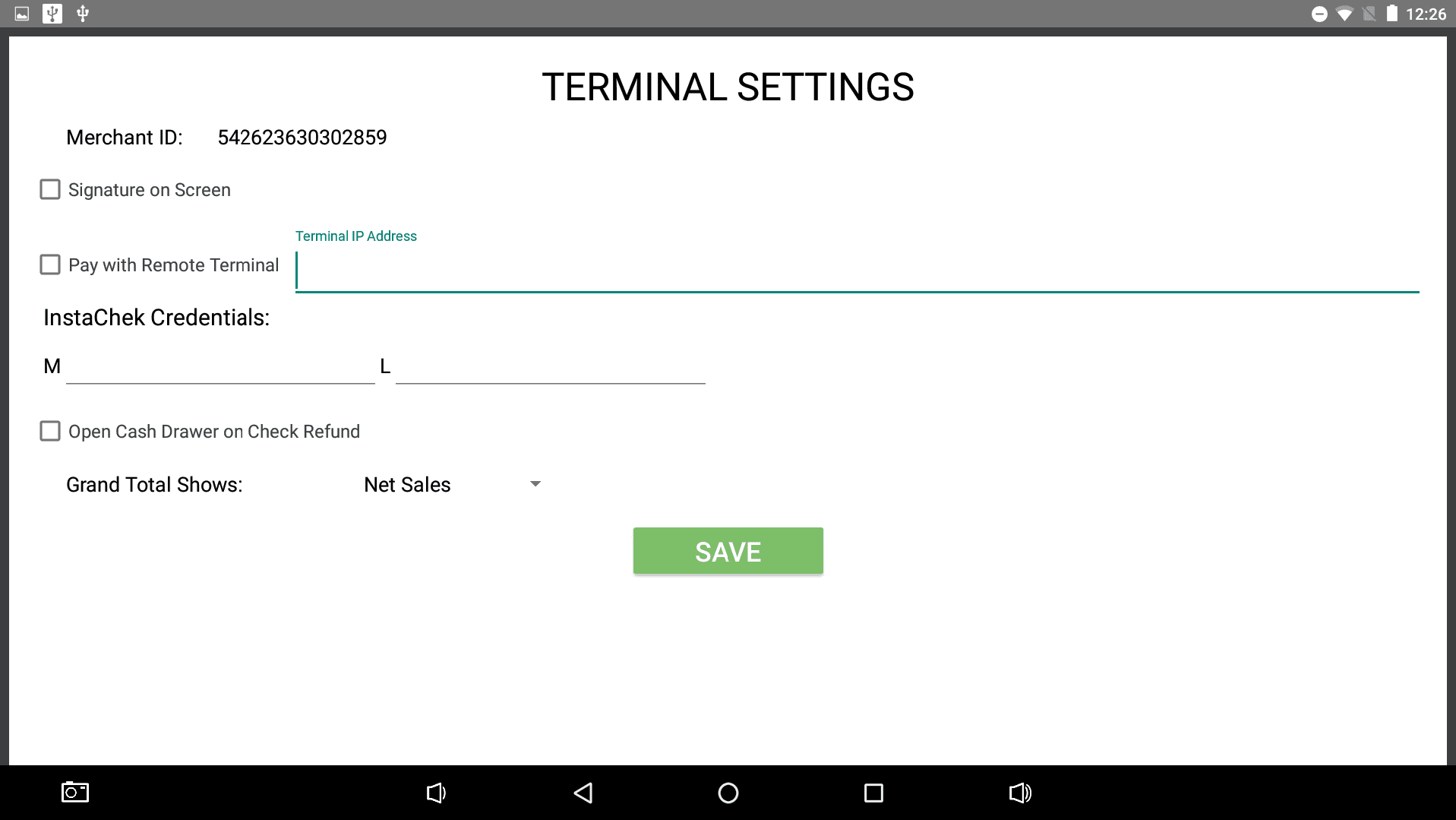
Terminal Settings
These settings are mostly for administrative use. These control what credit card terminal the point of sale communicates with and if customers sign receipts on the screen.
- Merchant ID - This is set before shipment and cannot be changed manually.
- Signature on Screen - Allows customers to sign on the customer facing display rather than on the printed receipt.
- Pay With Remote Terminal - This sets if a terminal not connected to the E800 can work as the credit card terminal for the register.
- ** Terminal IP Address** - If Pay With Remote Terminal is selected, this space will need to be filled with the IP address of the remote terminal so the devices can communicate.
- InstaChek Credentials - InstaChek allows users to verify customers identification numbers against a database to ensure they aren't a current "check risk". An account will need to be made with InstaChek (opens in a new tab) and the credentials they provide will be inserted in the M and L fields.
This feature is coming soon.
- Open Cash Drawer on Check Refund - Sets if the cash drawer should open when a customer gets a refund on a check payment, typically used in cases where a customer would like cash back on a payment made with check.
- Grand Total Shows - This dropdown can be switched between Net Sales and Gross Sales, which will display on reporting.