Tutorials
Creating a Sale
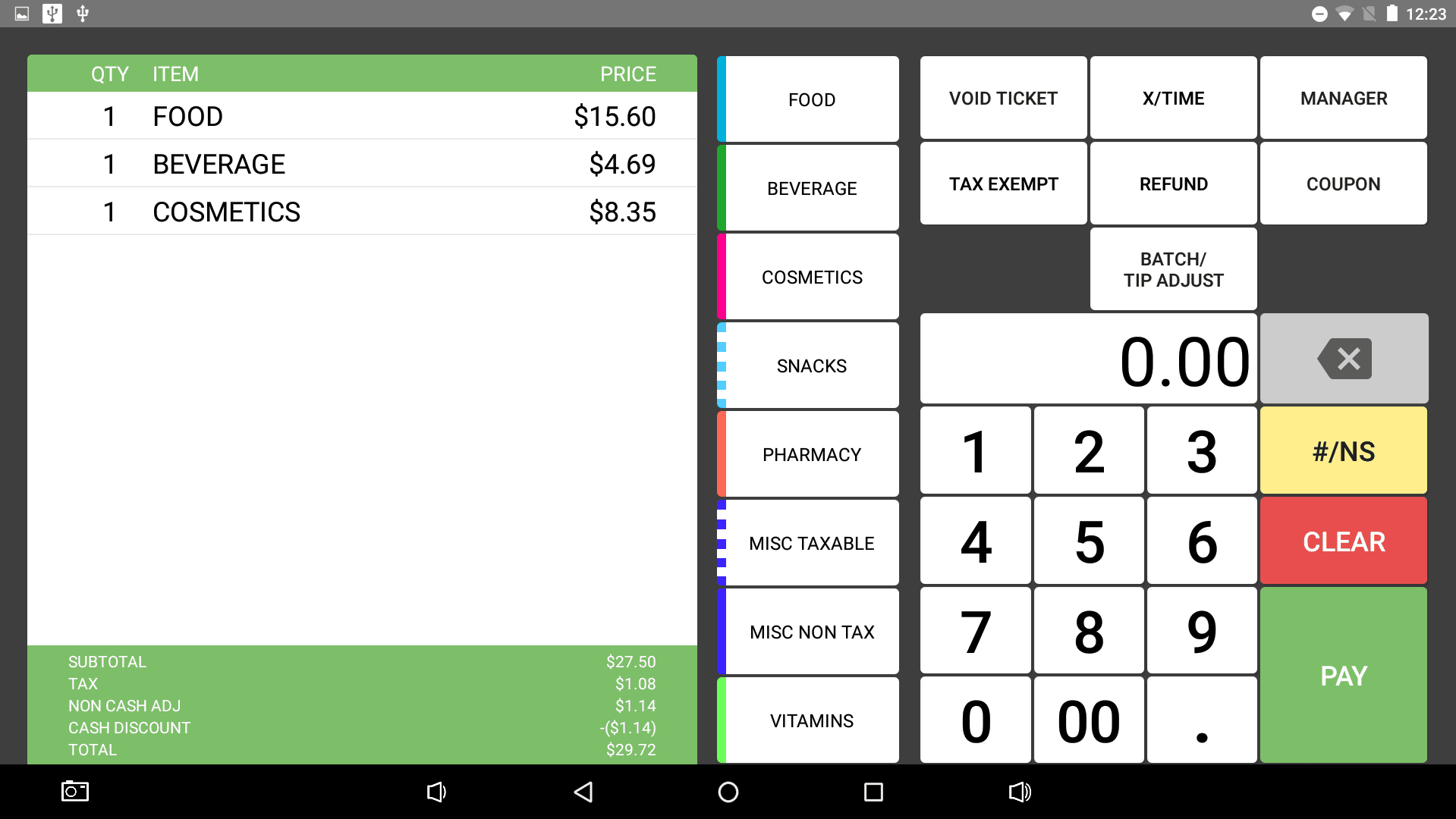
- To ring up an item, begin by typing in the price of the item. Once the price is listed, select the department the item should belong to. This will add the charge to the ticket field.
- If rang up incorrectly, the line item on the ticket can be deleted by simply swiping it either right or left until it leaves the ticket field.
- When all items have been added to the ticket, select Pay at the bottom right.
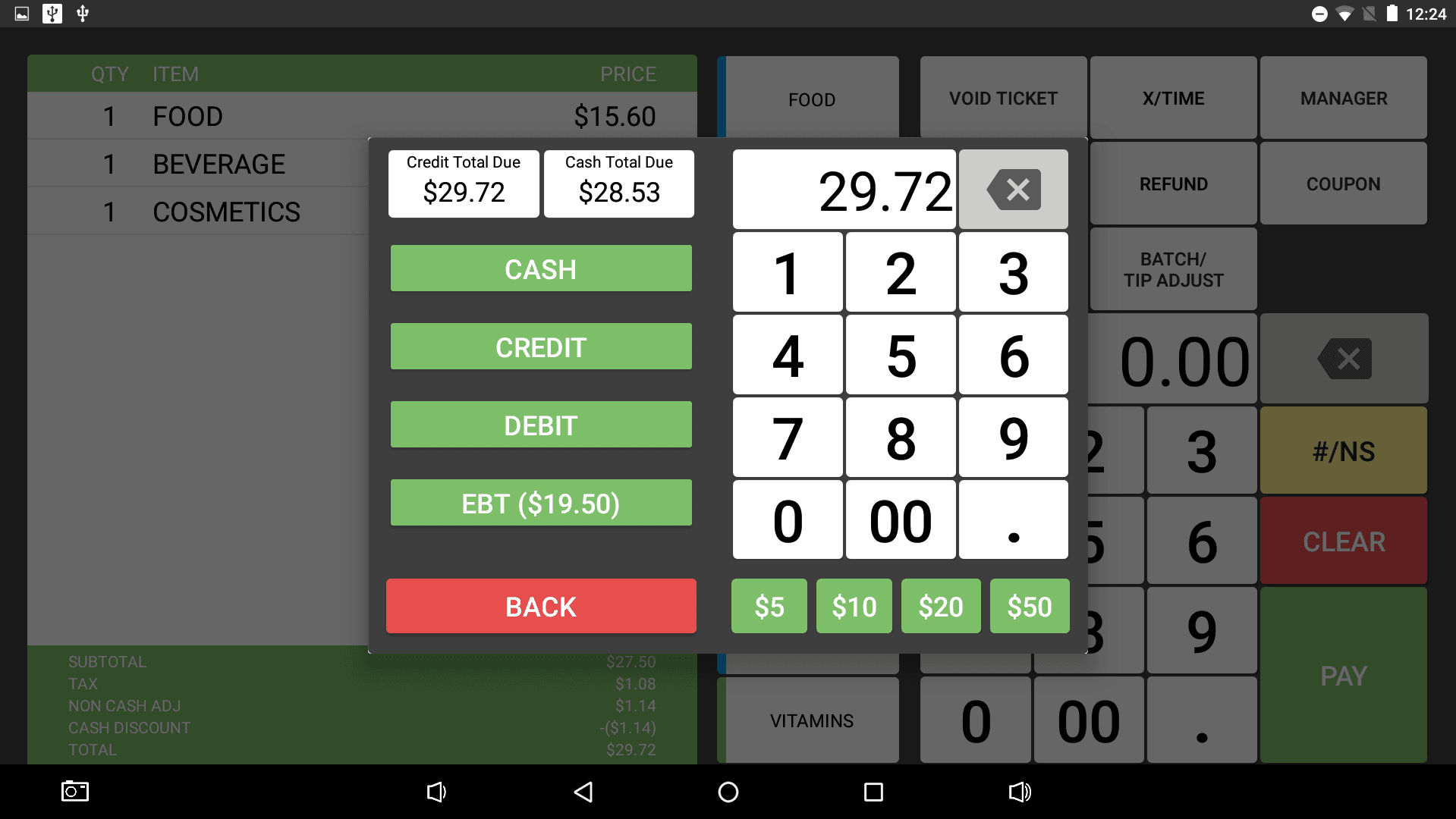
- The amount automatically added in the keypad will be the credit total due. To run credit or debit, simply select the appropriate button. Once the customer has completed their payment with the customer facing display and card terminal, Reef will request how to give the customer the receipt. Select the requested option.
- If paying in cash, type in the amount the customer pays. There are quick amounts listed below the keypad for quicker checkout. Once the amount is listed in the payment field, select Cash. The cash drawer should open and Reef will request how to give the customer the receipt as well as display the charge amount.
Void Current Ticket
- On a ticket currently open with items on it, there are two ways to clear the ticket. To delete individual items from the ticket, swipe the item left or right until it disappears. This gets rid of the item.
- To void the entire ticket, select Void Ticket. In most cases, a manager password will be required. Once the password is entered, the ticket will be voided.
Void Closed Ticket
- Find the closed ticket to be voided by selected Manager > Ticket Recall. This will prompt for a manger password.
- Listed will be all previous tickets since the last batch and Z report. On the left are various filters to help narrow down the ticket search. Once the ticket has been found, select it.
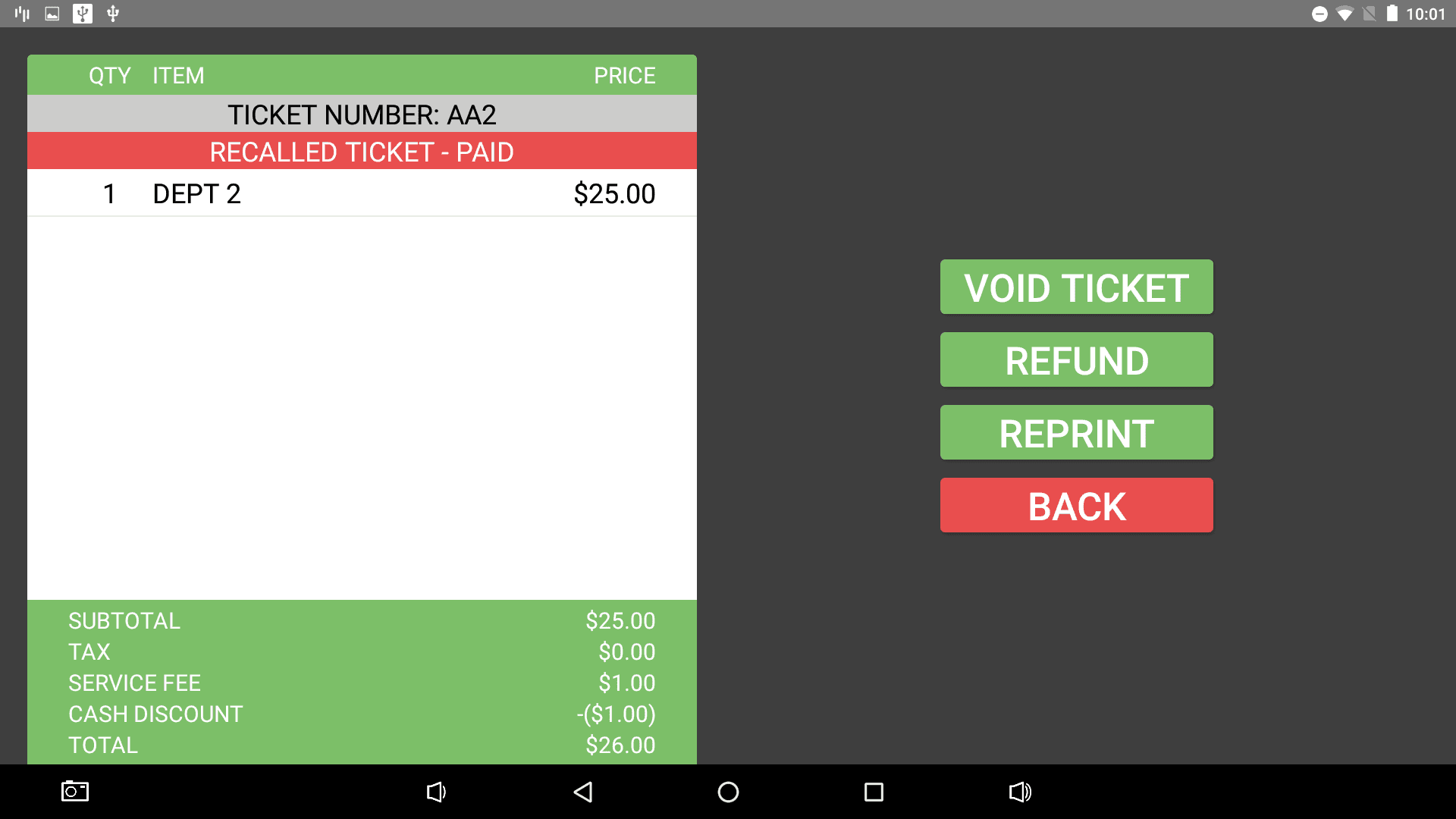
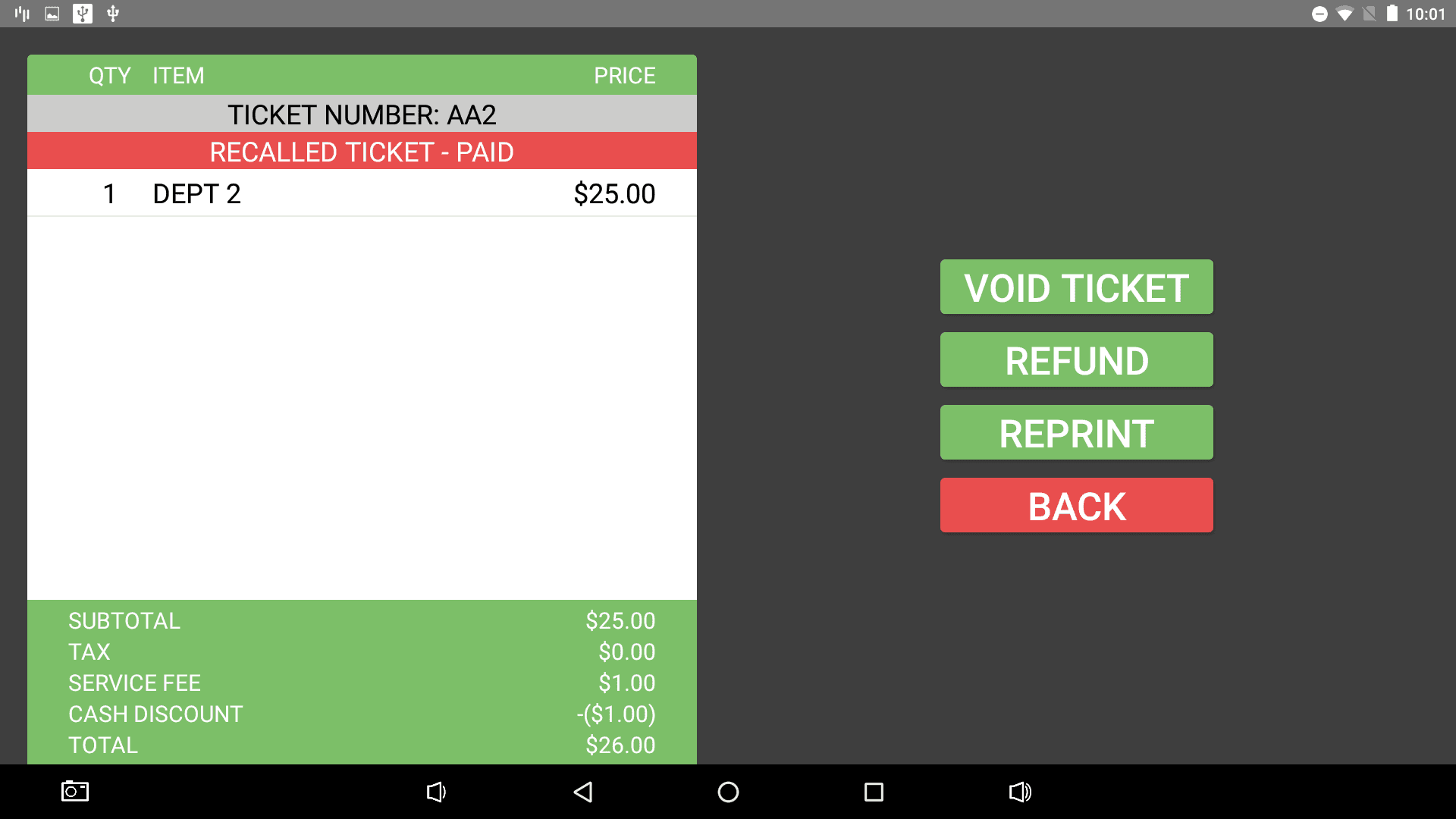
- A new screen will open. To void the ticket, select Void Ticket. It will prompt for a manager password again.
- Once the password is entered, the screen will go back to ticket recall and the ticket will now list Void under its status.
X/Time - Item Quantity
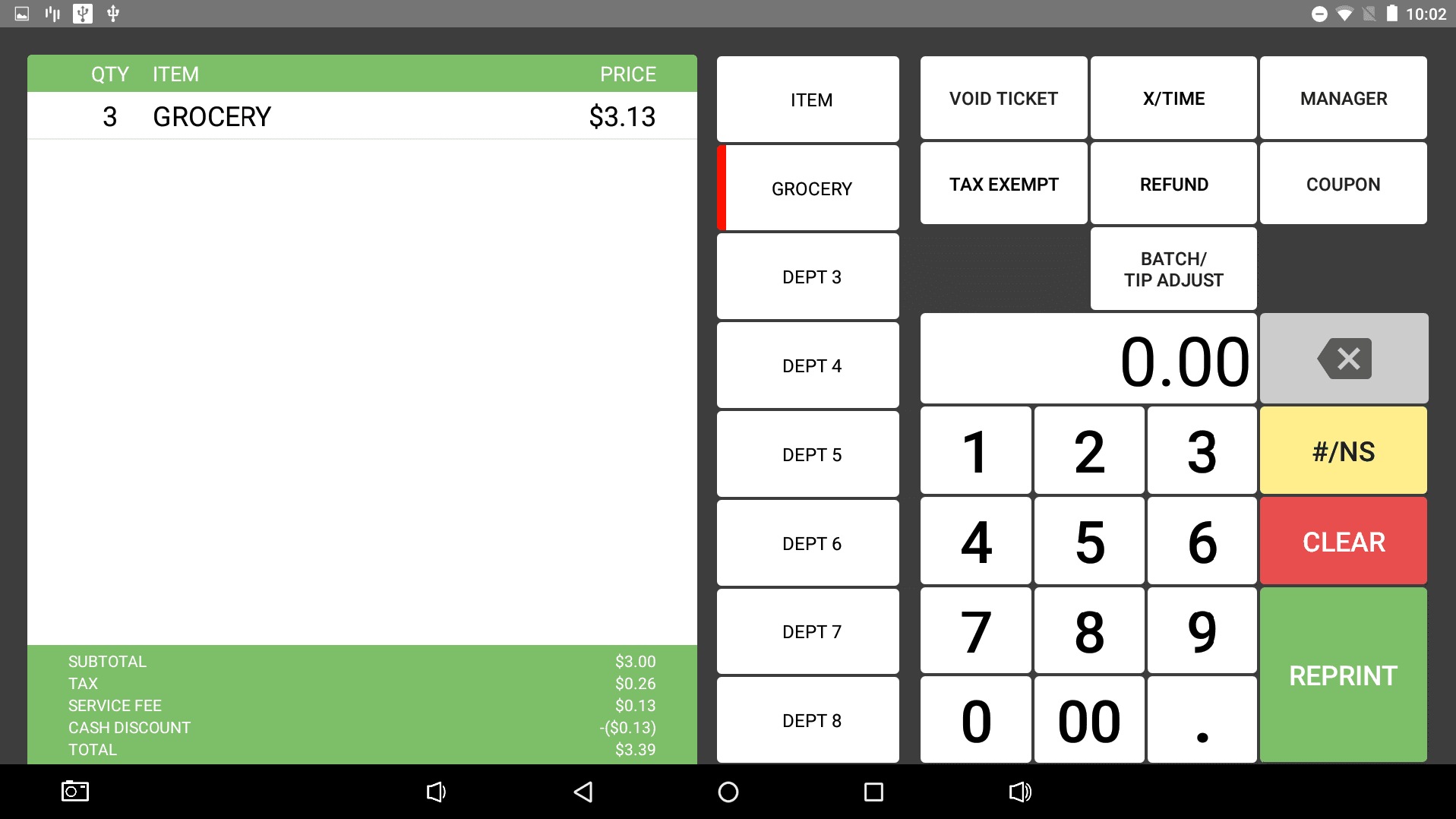
- The X/Time button allows the user to enter an item's quantity while ringing up the item. To do so, begin by using the number pad to type the quantity of the item to be rang up. For instance, let's ring up three $1.00 items. Type 3 into the number pad.
- Select the X/Time button. It will turn red. Now type in what the price is of one of the items. In this example, $1.00.
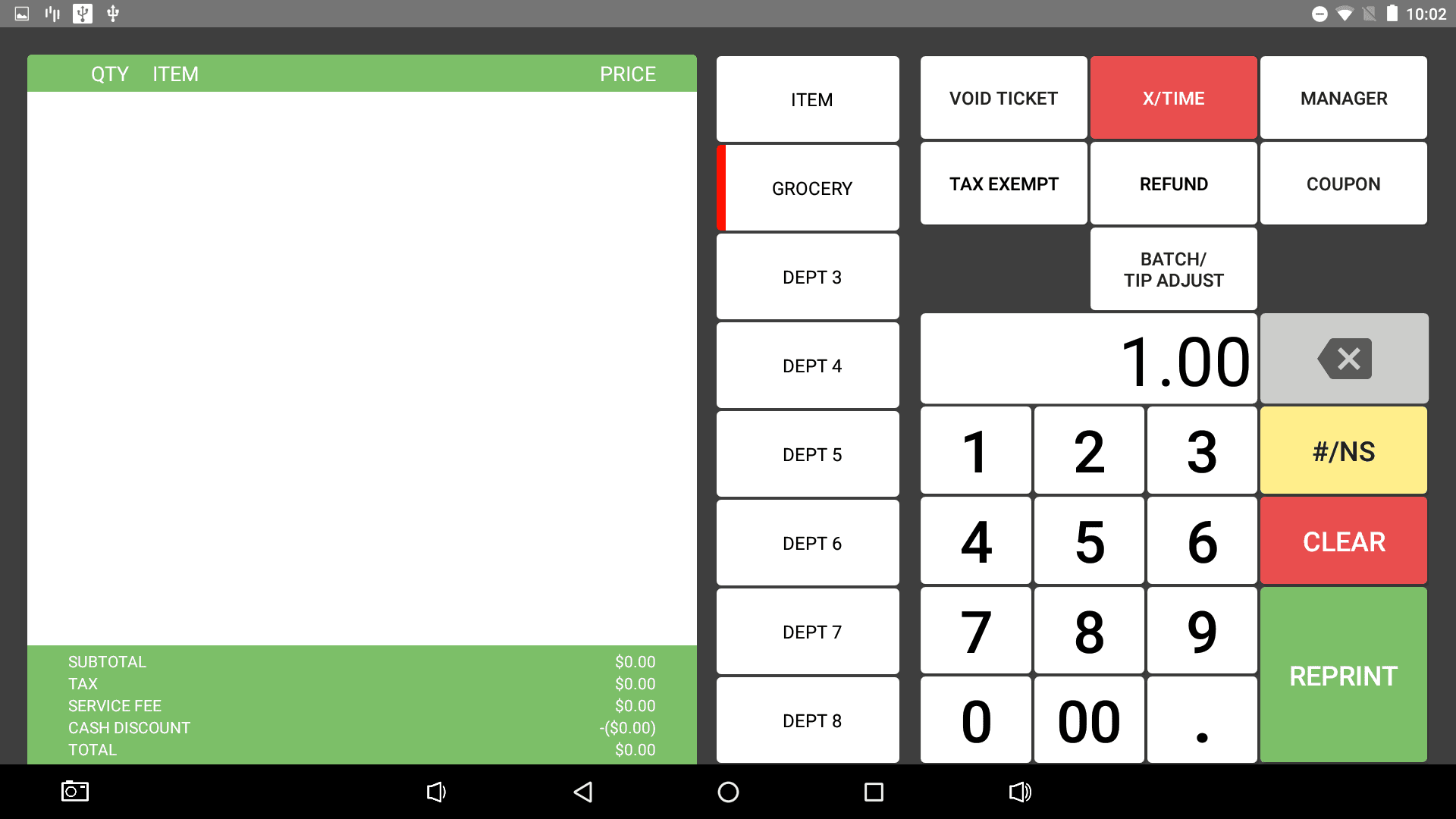
- Now select the appropriate department for the item. This will automatically add the item and the quantity to the ticket, with the price totaled for you.
Tax Exempt Items
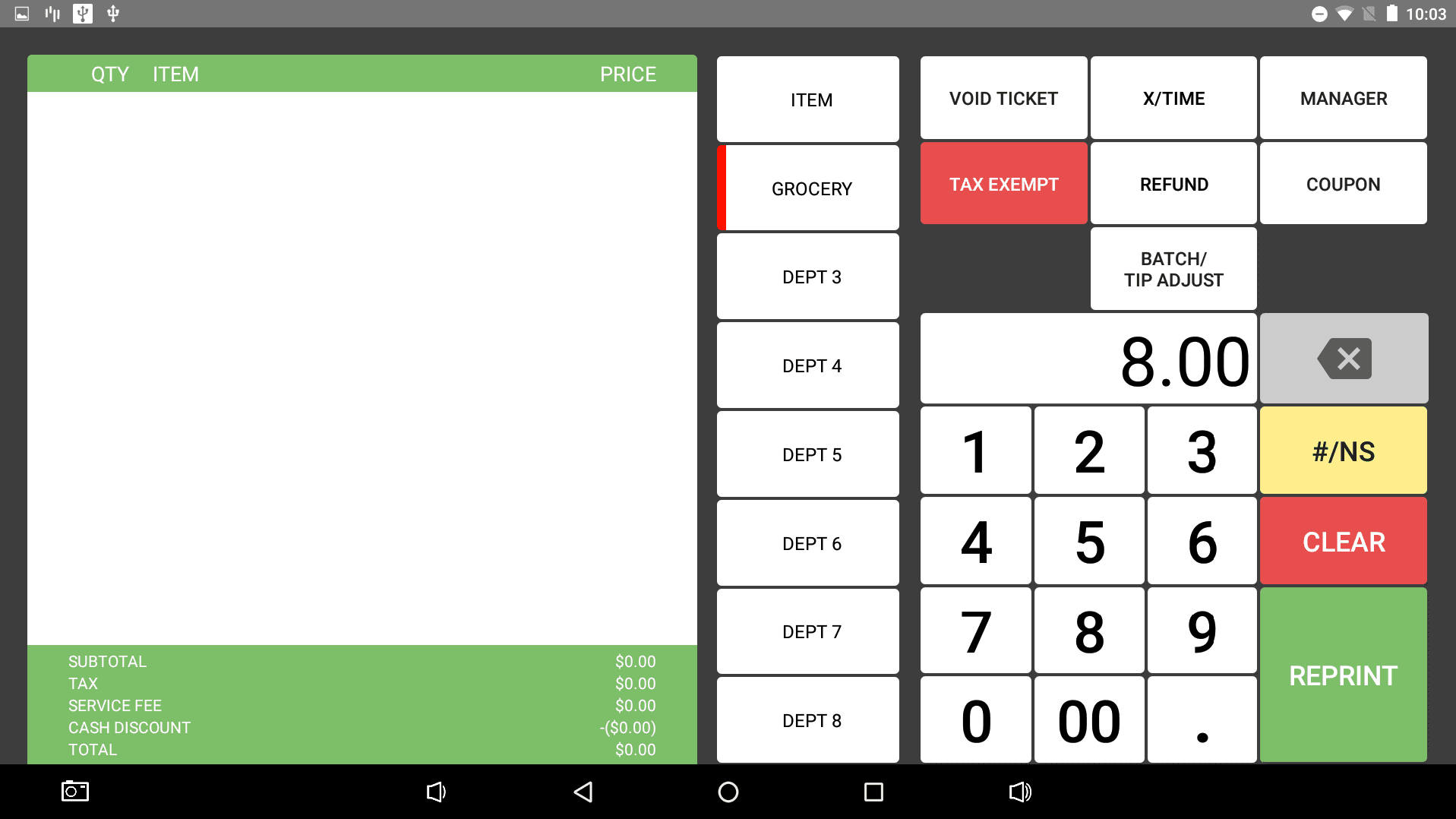
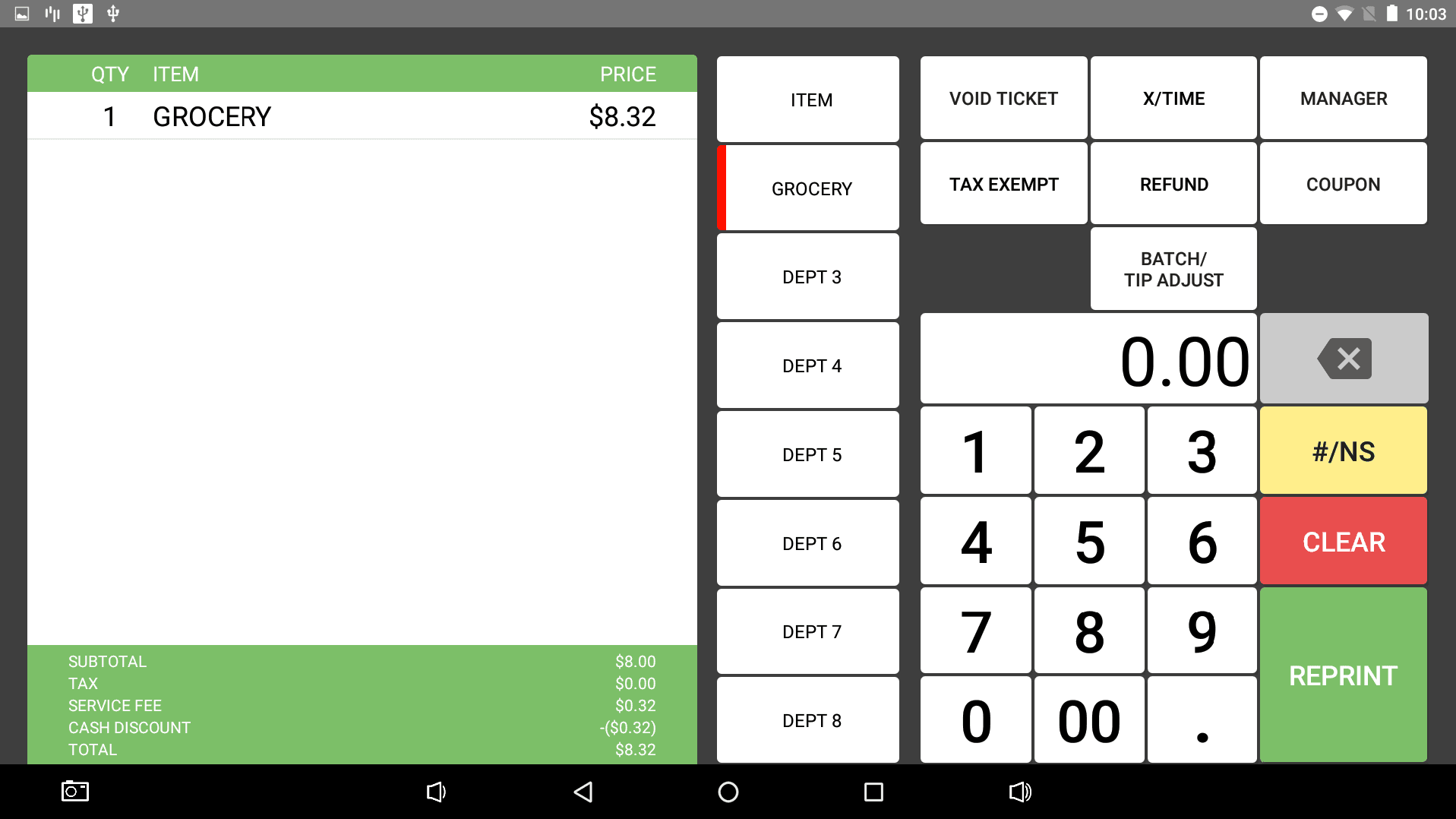
- To remove the tax from an item that would normally be rang up with tax, begin by selecting the Tax Exempt button before ringing in the item. It will prompt for the manager password.
- Once the password has been entered, the button will turn red, meaning it is active. Type in the cost of the item as normal and select the department to ring up the item. It should be added to the ticket without adding tax.
Creating a Refunded Item
- To refund a single item on a ticket, select Refund. It will prompt for the manager password.
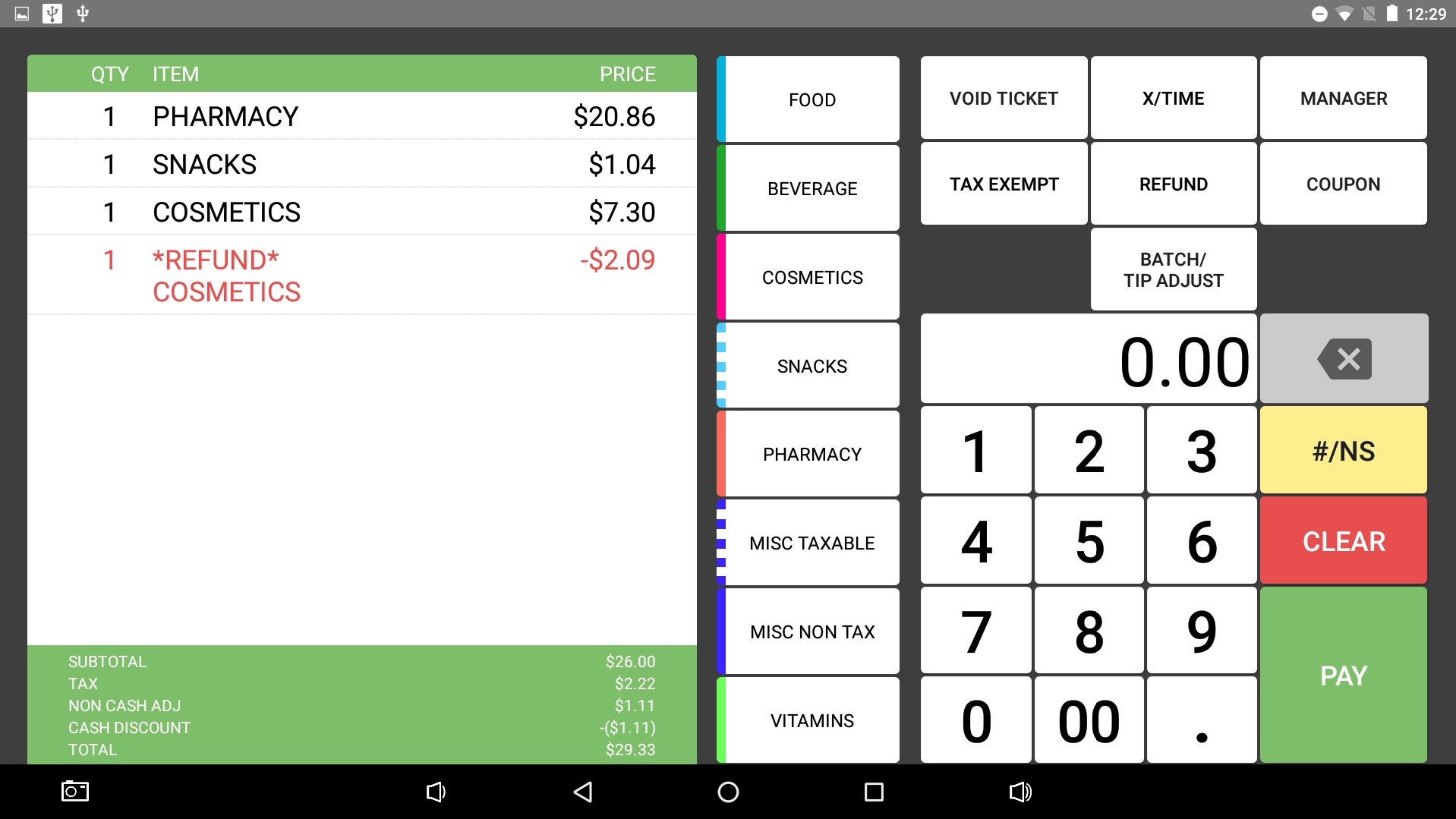
- Once the password has been entered, the button will turn red. Type in the price of the refunded item and then the department to add it to the ticket.
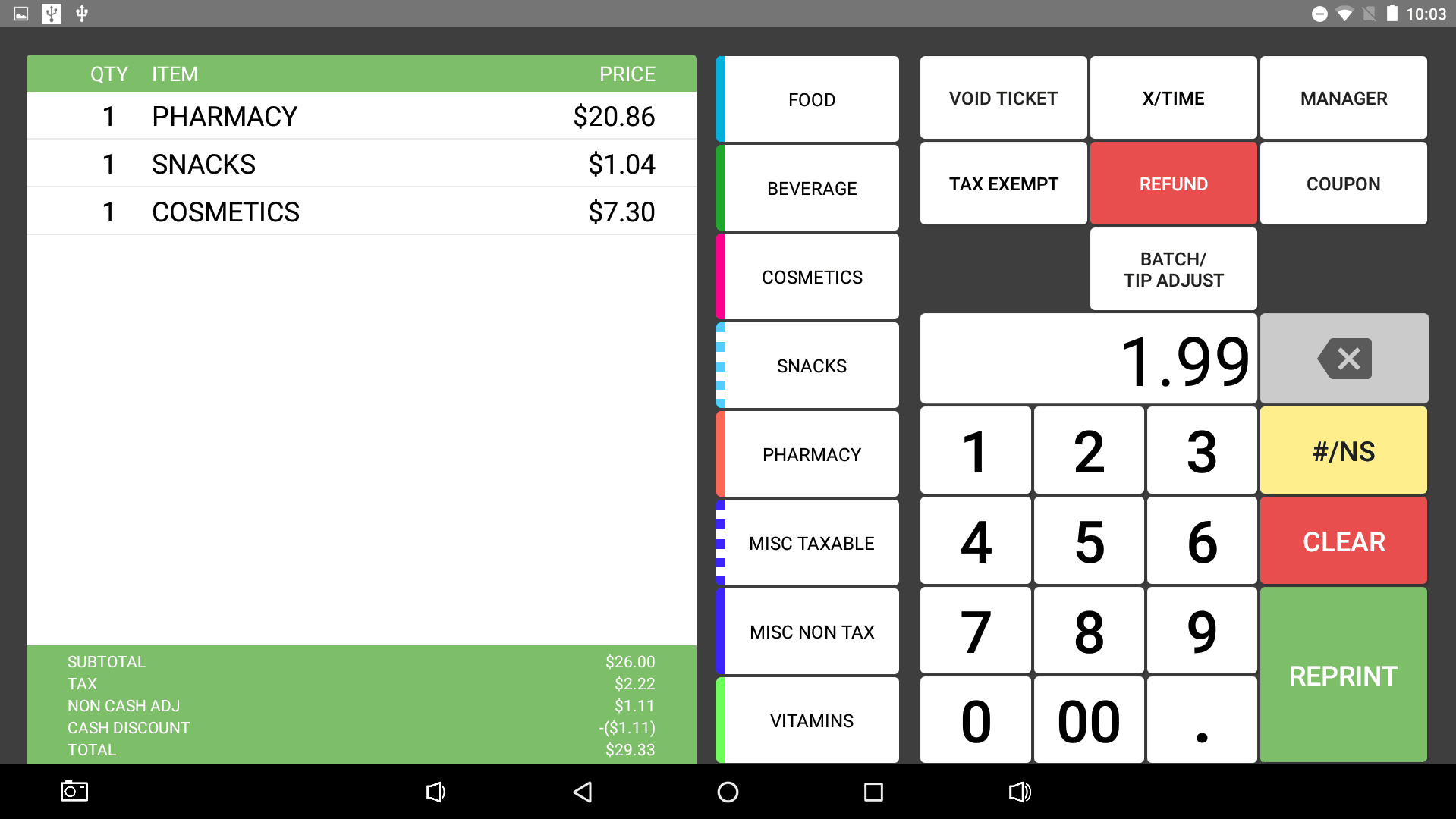
- This will add a refunded item to the ticket. If any other items are added to the ticket to be paid for, the refund will be subtracted from that total. If the refund is alone and the user selects pay, it will allow the user to refund the amount to the customer.
Refunding a Ticket
- To refund a closed ticket that hasn't been batched and hasn't yet been cleared by the Z reports, select Manager > Ticket Recall. This will prompt for a manager password.
- Listed will be all previous tickets rang up in the system since the last batch and Z report. On the left are various filters to help narrow down the ticket search. Once the ticket has been found, select it.
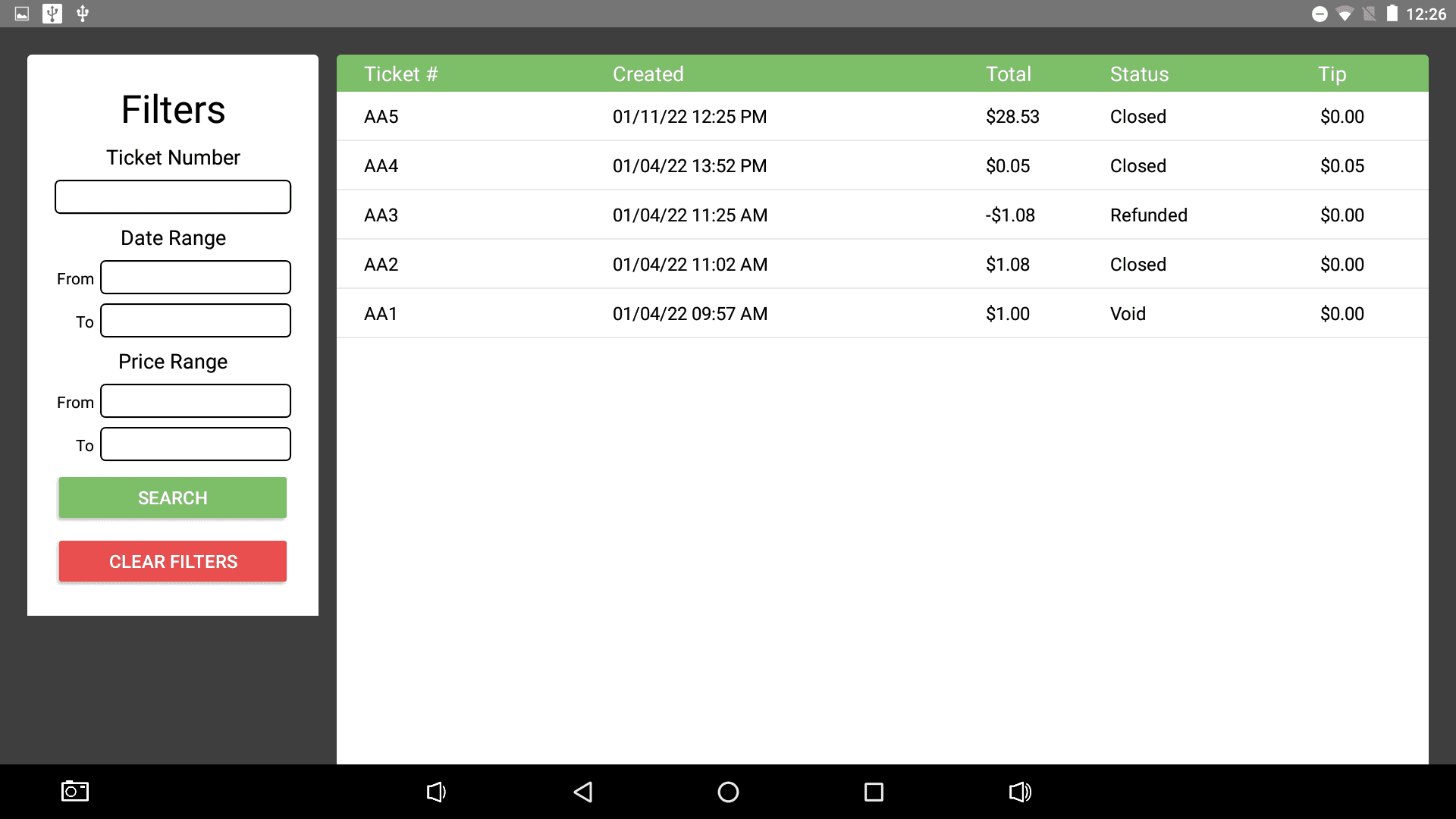
- A new screen will open. To refund the ticket, select Refund Ticket. It will prompt a manager password again.
- Once the password is entered, the payment screen will appear, allowing the user to pay out the refund.
Adding a Coupon
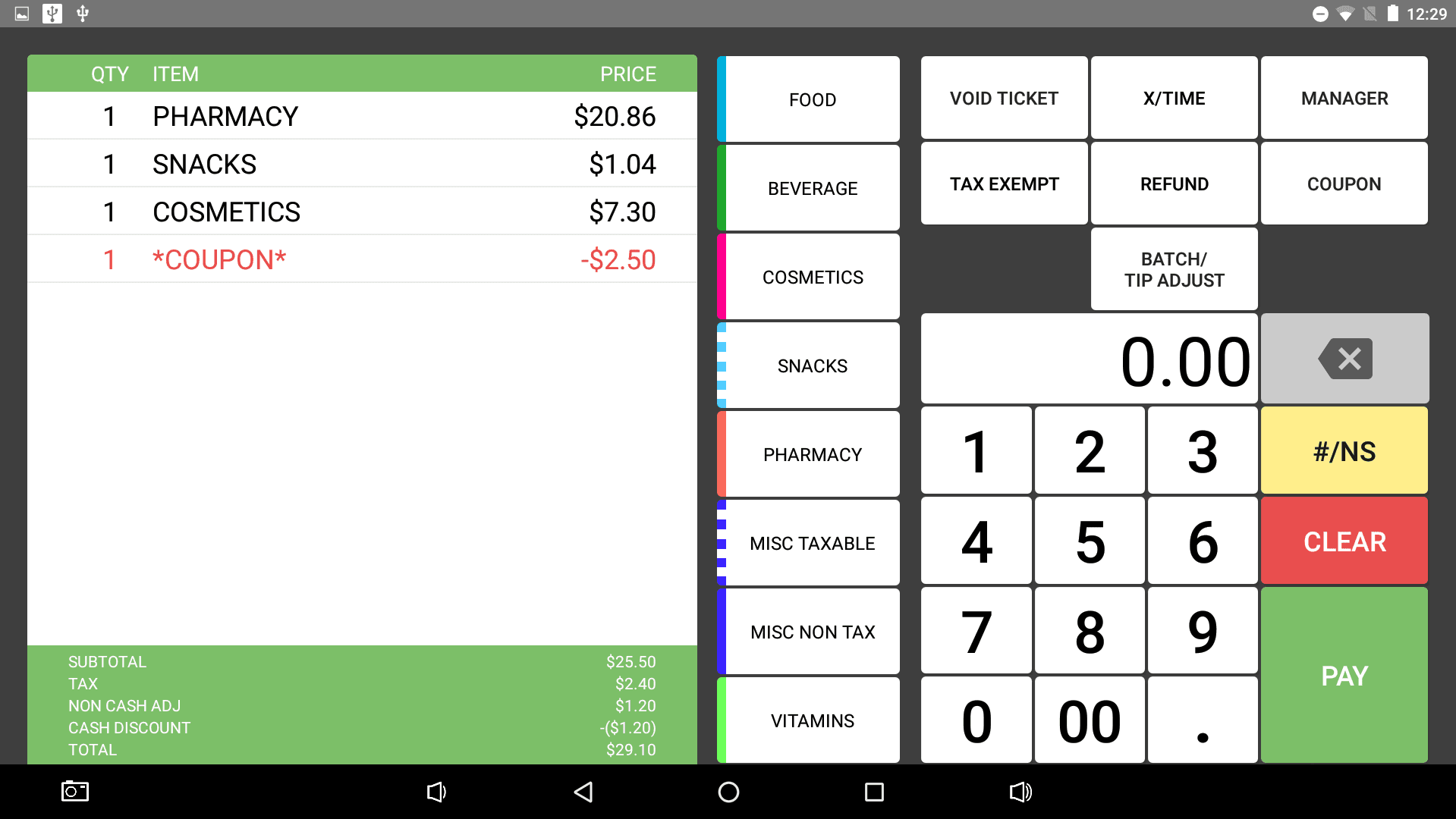
- To add a coupon to a ticket, first type in the coupon value using the number pad.
- Next, select the Coupon button. This will apply the coupon to the ticket.
Tip Adjust
- This button may only say *Batch if tipping isn't enabled. To enable tipping, refer to General Settings. It will then say Batch/Tip Adjust. Tips can only be added to credit transactions.
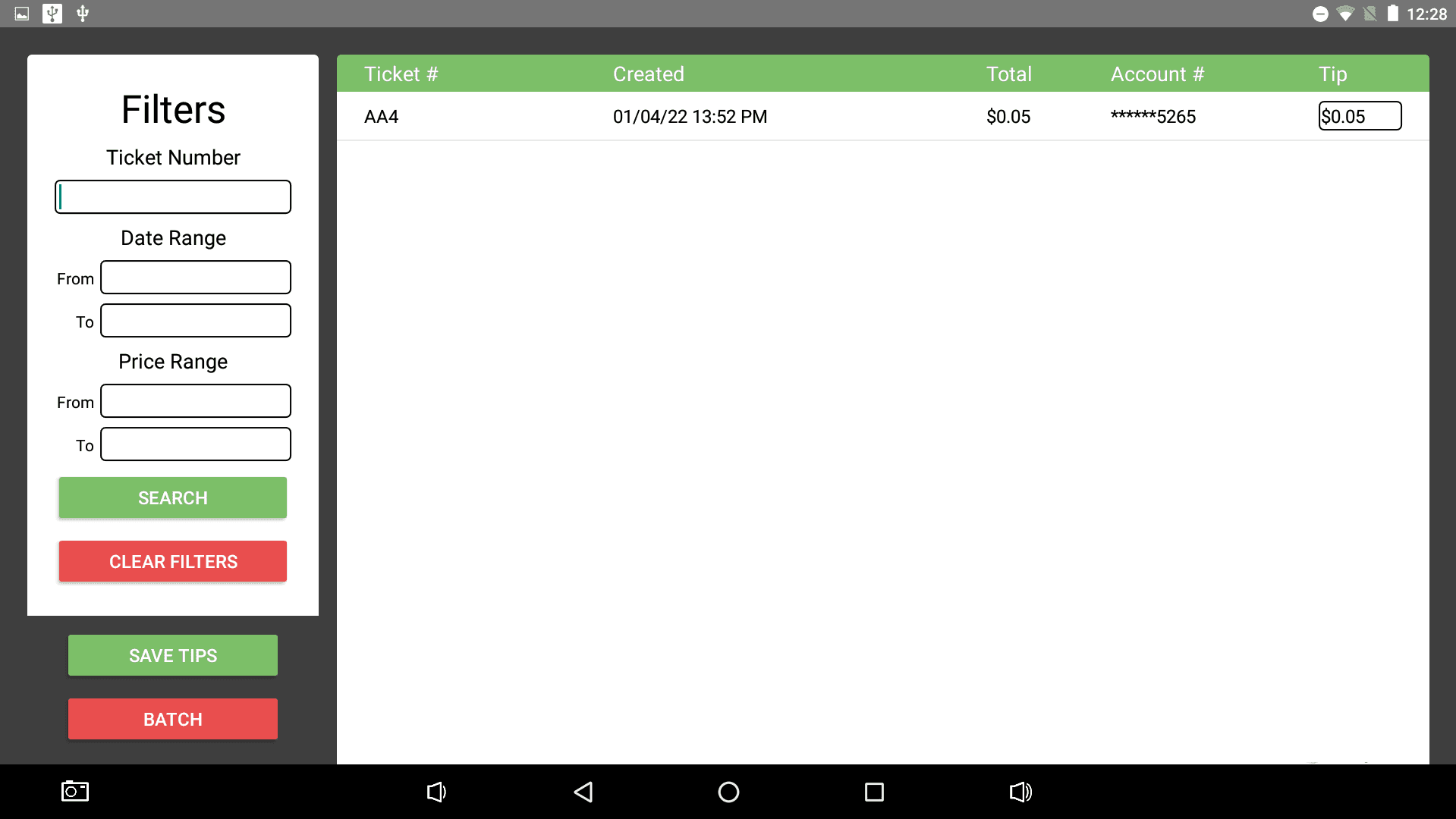
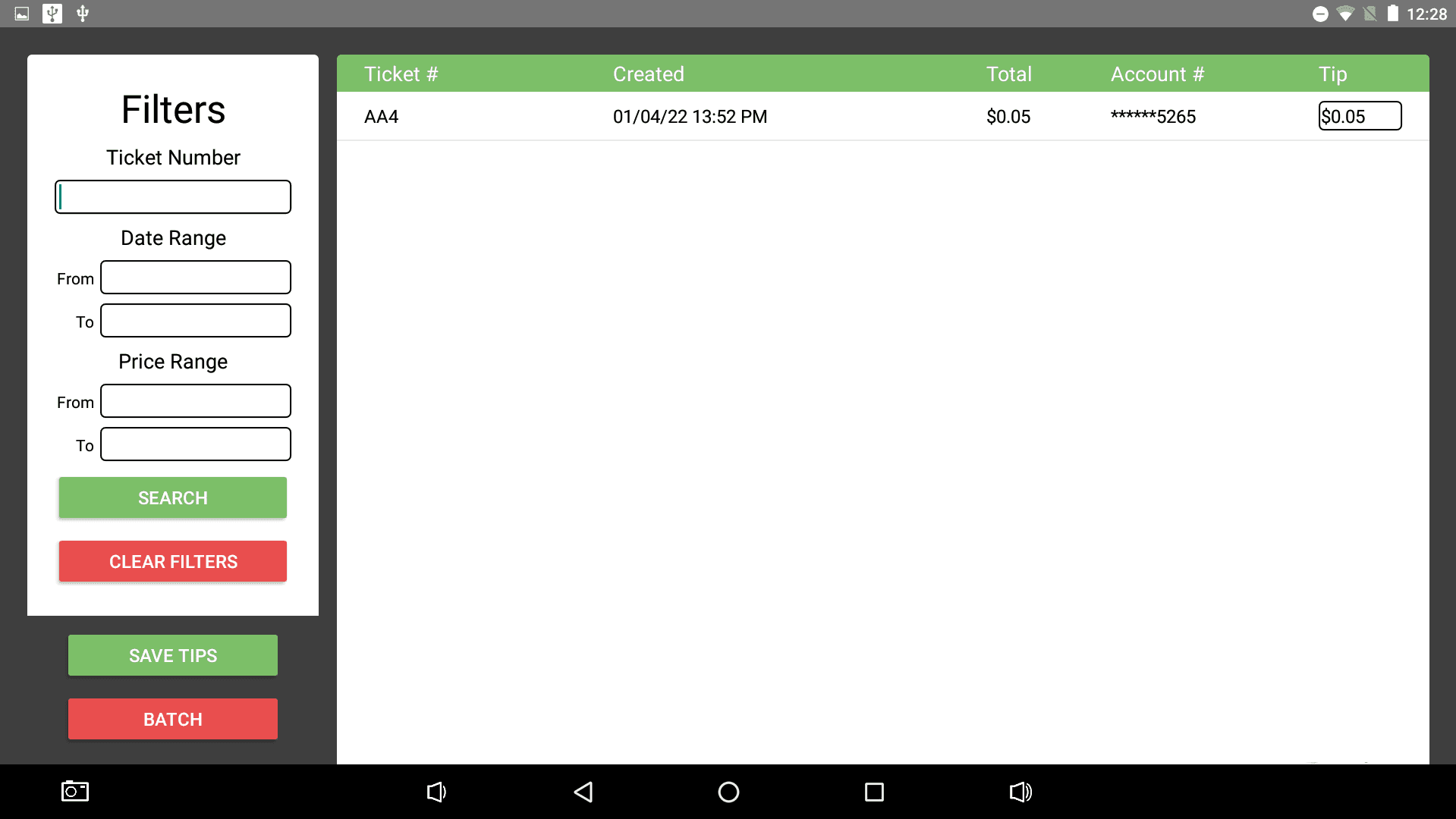
- To add a tip to a credit transaction, find the ticket that the tip needs to be added to. There should be a blank space for the ticket under Tip.
- Select the space and type in the amount that should be added as the tip. Select OK when finished.
- When finished adding all tips, select Save Tips. This may require a manager password.
Batch
- To batch all credit card transactions, select Batch/Tip Adjust. All current credit card transactions will be listed.
- To batch these, select the Batch button at the bottom left. It will prompt for manager password. Keep in mind that once credit card transactions are batched, tips cannot be added to them, so make sure any tips that are supposed to be added have been added.